Why RDP servers get attacked
Any server with port 3389 open to the internet gets checked all the time by robots (bots). The bots try common usernames and passwords again and again — this is called a brute-force attack. It does not mean someone chose you; it happens to every server. The checklist below makes these attempts useless.
Keep your RDP safe: the 6 most important steps
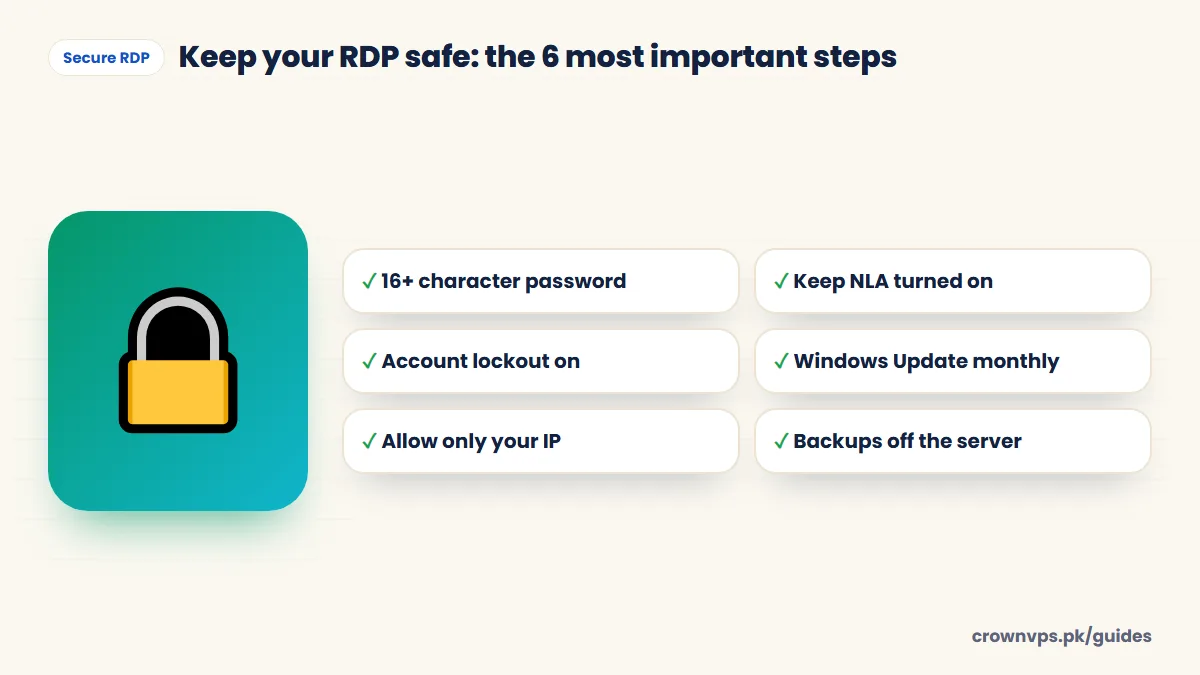
The RDP security checklist
- Change the password the first time you log in. Use at least 16 characters, and do not use it anywhere else. A password manager makes this easy. Press Ctrl + Alt + End → “Change a password”.
- Keep Network Level Authentication (NLA) on. System Properties → Remote → “Allow connections only from computers running Remote Desktop with Network Level Authentication”. It makes people log in before any session starts.
- Turn on account lockout. Run
secpol.msc→ Account Policies → Account Lockout Policy. Lock the account after about 10 wrong tries, for 15–30 minutes. Microsoft now also lets the built-in Administrator be locked out this way (“Allow Administrator account lockout”). - Make a second administrator account with its own strong password, so if one account gets locked you can still get in. You can also rename the built-in Administrator account, so bots guess the wrong name.
- Run Windows Update now, and then every month. Updates fixed most serious RDP security holes, like “BlueKeep” in 2019, long before attackers used them widely.
- Allow RDP only from your IP, if your IP is fixed. Windows Defender Firewall → Inbound Rules → Remote Desktop → Scope → add your own IP. Everyone else is blocked. Many home internet connections in Pakistan change IP often — if yours does, skip this step or you will lock yourself out.
- Think about changing the port from 3389 to another number (see below). It will not stop a serious attacker, but it stops most bot attempts.
- Give other people their own accounts instead of sharing Administrator. Remove their accounts when they leave.
- Keep Windows Defender on and let it update. Do not install software from places you do not trust.
- Log off instead of just closing the window when you finish, especially on a shared computer.
- Keep backups away from the server. Copy important files to cloud storage or another computer on a regular schedule. A server is not a backup.
- Check failed logins now and then. Event Viewer → Windows Logs → Security, event ID 4625 (see below).
Set up account lockout (stop password guessing)
Stop password-guessing bots with account lockout
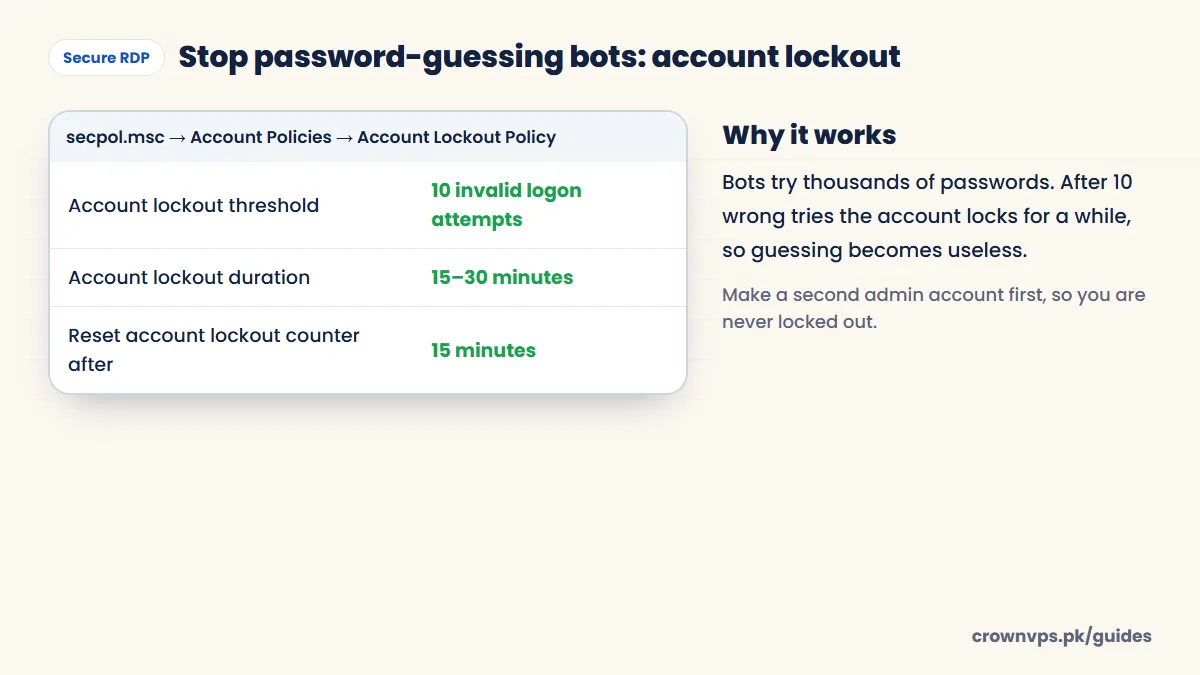
- Make a second admin account first, so you are never fully locked out.
- Press Windows + R, type
secpol.mscand press Enter. - Open Account Policies → Account Lockout Policy.
- Set Account lockout threshold to 10 invalid logon attempts.
- Set Account lockout duration and Reset account lockout counter after to 15 minutes or more.
How to change the RDP port safely
Do the steps in this order, or you can lock yourself out.
- Open the new port first. In Windows Defender Firewall, add two new inbound rules that allow your new port (for example 50123) — one for TCP and one for UDP.
- Press Windows + R, type
regedit, and go toHKEY_LOCAL_MACHINE\SYSTEM\CurrentControlSet\Control\Terminal Server\WinStations\RDP-Tcp. - Double-click PortNumber, choose Decimal, type the new port and click OK.
- Restart the server.
- Connect with the new port after a colon:
203.0.113.10:50123.
Not comfortable editing the registry? Ask our support team and we will do it with you.
How to see if someone tried to break in
Open Event Viewer → Windows Logs → Security and click “Filter Current Log”. Type 4625 (failed login). Each event shows the time, the username tried and the IP address it came from. “Logon Type 10” means a Remote Desktop login. Many failed logins from unknown IPs are normal bot scanning — it means your lockout and password are doing their job. Watch for 4624 (successful login) at a time or from an IP you do not recognise.
What to do if you think your RDP was hacked
- Change the passwords of every account on the server right away.
- Check Event Viewer for successful logins (4624) you do not recognise, and remove any new user accounts you did not create.
- Run a full scan with Windows Defender.
- Change the passwords of any websites you logged into from the server.
- Message our support team. If needed, we can reinstall the server cleanly — back up your files first.
Extra protection (optional)
- Two-step login (2FA) — extra tools can ask for a code from your phone when you log in. They need setup; ask us if you want help choosing one.
- A VPN — you can hide RDP behind your own VPN so only VPN users can reach it. WireGuard VPS
What not to do
- Do not turn NLA off to “fix” a connection error. Update your Remote Desktop app instead.
- Do not use the same password as your email or social media.
- Do not share the Administrator login in chat groups.
- Do not skip Windows Update for months.
Linux servers
For a Linux VPS, the same ideas apply over SSH, the way you log in to Linux servers. Log in with a key and turn off password login. Keep packages updated. Turn on a firewall such as ufw, and open only the ports you need. You can also use fail2ban to block people who keep failing to log in.
Cannot connect after making these changes? See RDP will not connect.
Quick summary
- Long unique password + NLA + account lockout + Windows Update stop almost all attacks.
- Allow only your IP if it never changes.
- Change the port only after opening the new port in the firewall.
- Check event 4625 for failed logins and 4624 for successful ones.
Frequently asked
Is it safe to leave RDP open to the internet?
It can be safe if you use a strong password that you use nowhere else, NLA, account lockout and regular updates. Allowing RDP only from your own IP is even safer, if your IP does not change.
Should I change the RDP port from 3389?
It cuts down bot login attempts, but on its own it is not real security. Do it together with a strong password and account lockout. Open the new port in the firewall first.
How do I know if someone tried to break in?
Check Event Viewer → Security for event ID 4625 (failed login). Many failed logins from unknown IPs are normal bot scanning. Watch for a successful login (4624) that you do not recognise. If you see one, change your passwords right away and contact us.
Is RDP safe without a VPN?
Yes, for most people, if you follow the checklist. A VPN adds another layer, but a long password, NLA, lockout and updates are the most important.
Can I add 2FA to RDP?
Not by default, but extra tools can add a phone code to Remote Desktop logins. Ask us if you want help setting one up.
How do I change my RDP password?
While logged in, press Ctrl + Alt + End and choose “Change a password”. Use at least 16 characters.
Roman Urdu mein sawal jawab
RDP ko hack hone se kaise bachayein?
16 se zyada characters ka naya password rakhein, NLA on rakhein, account lockout on karein aur har mahine Windows Update chalayein.
RDP ka port badalna zaroori hai?
Zaroori nahin, lekin is se bots ki koshishein kam ho jati hain. Pehle firewall mein naya port kholein, phir badlein.
Kaise pata chale ke kisi ne login ki koshish ki?
Event Viewer mein Security log kholein aur 4625 filter karein. Yeh failed logins hain. Anjaan successful login (4624) nazar aaye to foran password badlein.
Written in plain English by the CrownVPS support team. Something not clear? Tell us on WhatsApp and we will explain — and improve the guide.