First, find the cause (30-second check)
Why is my RDP slow? Find the cause
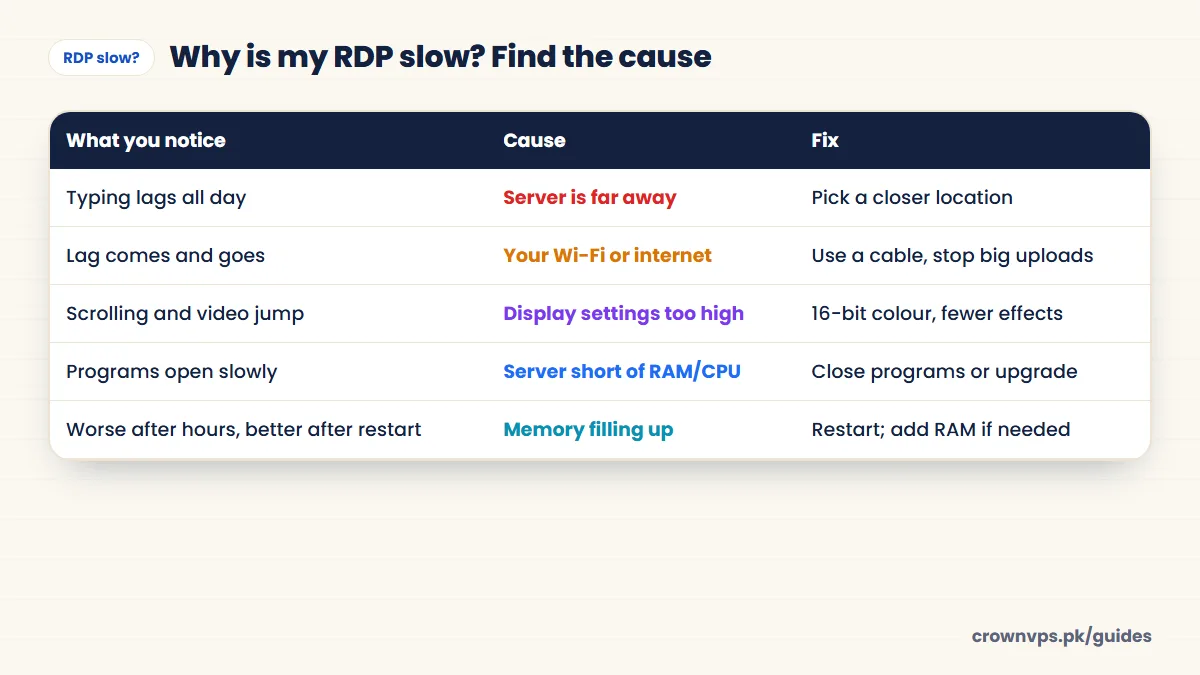
| What you notice | Likely cause |
|---|---|
| Letters show up a moment after you press keys, all day long | The server is far away (high ping) |
| Lag comes and goes, and is worse in the evening | Your internet connection or Wi-Fi |
| Scrolling and video are jumpy, but typing is fine | Display settings are too high for your internet speed |
| Programs are slow to open or slow to respond | The server does not have enough RAM or CPU |
| It gets worse over hours, and better after a restart | Memory on the server is filling up |
| Fast in the morning, slow at night on every site | Your internet company is busy at peak time |
Quick test: open Task Manager on the server (Ctrl + Shift + Esc). If CPU or memory is near 100%, the server is the problem. If they are low, the problem is distance, your internet or your settings.
Twelve fixes, easiest first
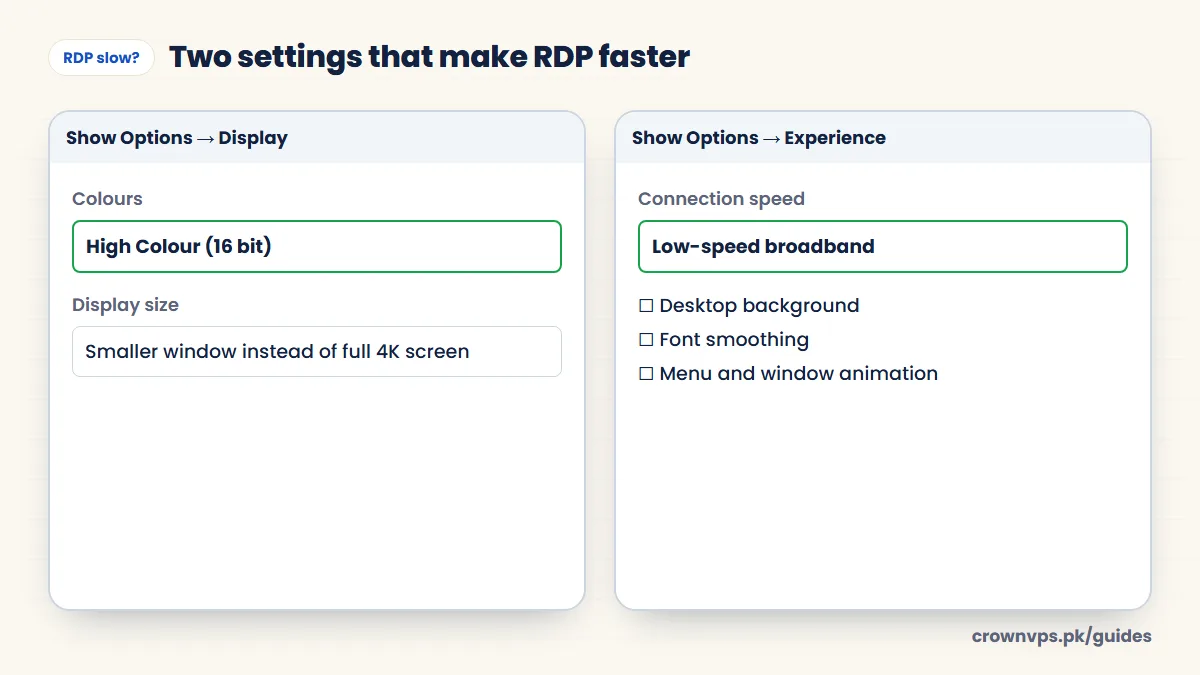
- Use fewer colours. In Remote Desktop Connection: Show Options → Display → Colours → High Colour (16-bit).
- Check the Experience tab. “Detect connection quality automatically” is the best default. If it was set to Modem (56 Kbps) by mistake, everything looks blocky — change it back. On a weak connection, choose “Low-speed broadband”.
- Turn off visual extras. Untick desktop background, font smoothing, and menu and window animation.
- Use a smaller window instead of full screen on a large or 4K monitor. A smaller picture means less data to send.
- Turn off what you do not need in Local Resources: printers, extra drives and remote audio all add traffic.
- Use a cable, not Wi-Fi, or sit closer to the router. Weak Wi-Fi causes most lag that comes and goes. Mobile 4G can be steadier than a weak home Wi-Fi.
- Stop big uploads at home. This means cloud backup, video calls and downloads on other devices.
- Check Task Manager on the server. If memory is above 90% or CPU stays at 100%, close some programs or upgrade. RAM guide
- Restart the server from time to time. Windows Update and some programs slowly use up memory.
- Turn off browser hardware acceleration on the server if Chrome or Edge are jumpy. Servers have no graphics card.
- Keep UDP turned on. Newer Windows uses UDP port 3389 as well as TCP to make the session smoother, and falls back to TCP only if UDP is blocked. Do not block UDP 3389 in the firewall.
- Choose a closer location. If typing lags all day, distance is the cause. Only moving the server helps. From Pakistan, Pakistan and the UAE feel fastest. Location guide
Still laggy? Try Browser RDP. On a slow line, or when RDP lags even on fast internet, open your server in the browser from the client area and pick the Fast preset. It is free with every Windows VPS and RDP. Browser RDP guide
Two settings that make RDP faster
How to measure your ping
Open Command Prompt on your own computer. Type ping and then your server’s IP address. Ping is the delay between you and the server. Under 50 ms feels like a computer in the same room. 50–150 ms is fine for most work. Above 200 ms, you will notice a delay on every key you press. If the ping is fine but RDP still lags, the problem is your internet speed, the display settings or the server itself.
RDP slow to connect (“Securing remote connection…”)
If it sits on “Securing remote connection” or “Configuring remote session” for a long time, try these: restart the server from your control panel, make sure your own Windows is up to date, and try again from mobile data. A server that is out of memory also logs in slowly.
RDP keeps disconnecting
- Your Wi-Fi drops for a moment — try a cable or mobile data.
- The server ran out of memory — check Task Manager and restart.
- Your laptop goes to sleep — change the power settings while you work.
Slow file copying
Copying big files through Remote Desktop is slow because it shares the same connection as the screen. For large files, upload them to Google Drive or another cloud service from your PC, then download them on the server.
When to upgrade instead
Open Task Manager on the server during normal work. If memory or CPU is full, no setting on your side will help. The server needs more power. Move to the next plan up — your data stays. Compare plans.
Quick summary
- Typing lags all day → the server is far away.
- Lag comes and goes → your Wi-Fi or internet.
- Jumpy scrolling → lower colours and effects.
- Slow programs → the server needs more RAM or CPU.
Frequently asked
Why is my RDP slow even with fast internet?
Fast download speed does not help in three cases: the server is far away, your upload speed is weak, or the server is out of memory. Check the ping to the server and check Task Manager on the server to find the cause.
Does a bigger plan make RDP faster?
Only if the server does not have enough RAM or CPU. A bigger plan does not reduce the delay caused by distance. Check Task Manager on the server first.
What is a good ping for RDP?
Under 50 ms feels like a computer in the same room. Up to about 150 ms is fine for office and browser work. Above that, typing feels slow, but you can still use the server.
What internet speed does RDP need?
Office and text work use very little data. Video, big screens and many monitors need much more. A steady connection matters more than a fast one.
Should RDP use UDP or TCP?
Both. Windows uses UDP for a smoother picture and TCP as a backup. Keep UDP 3389 open for the best result.
Why does my RDP show a black screen?
Wait a minute and reconnect. If it stays black, restart the server from your control panel. A server that is out of memory can also show a black screen.
Roman Urdu mein sawal jawab
RDP slow kyun chal raha hai?
Chaar wajahein hoti hain: server door hai, aap ka internet kamzor hai, display settings zyada hain, ya server ki RAM/CPU kam hai.
RDP ko tez kaise karein?
Show Options mein colours 16-bit karein, Experience mein effects band karein, Wi-Fi ki jagah cable use karein, aur Task Manager mein RAM check karein.
Written in plain English by the CrownVPS support team. Something not clear? Tell us on WhatsApp and we will explain — and improve the guide.