Start here: check in this order
RDP will not connect? Check in this order
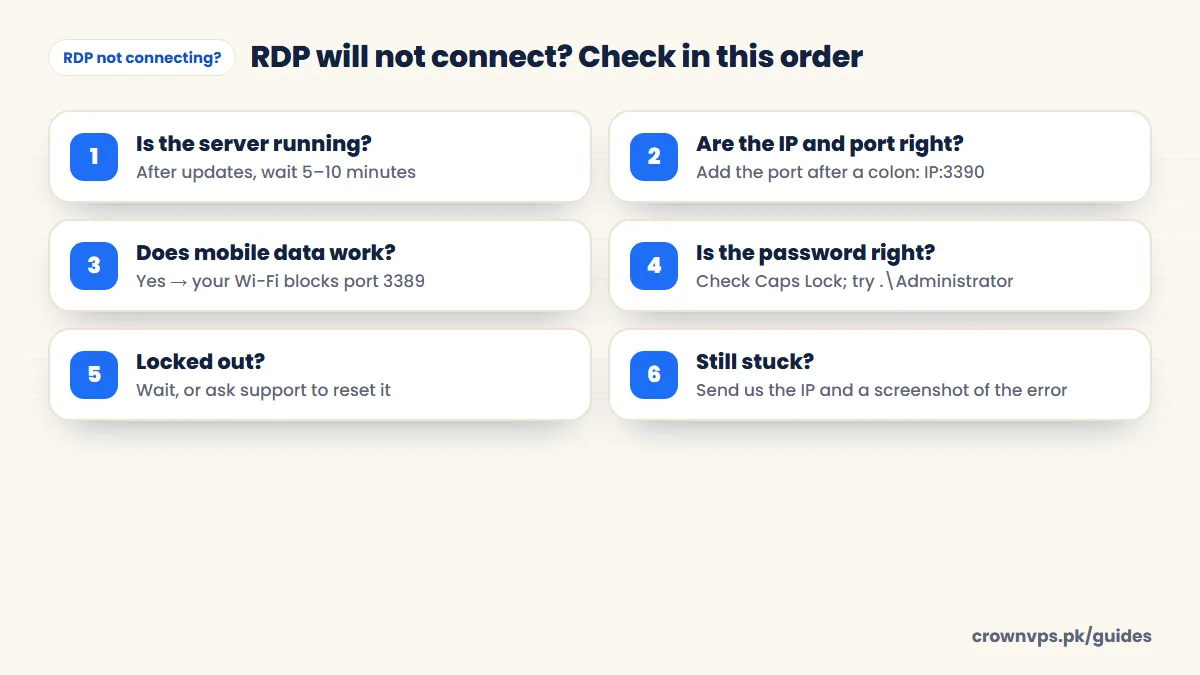
- Is the server running? If it just installed updates, wait 5–10 minutes. Check its status in your client area, and restart it from the control panel if needed.
- Is the address correct? Type the IP again from your welcome email. If the port is not 3389, add it after a colon:
203.0.113.10:3390. - Can you reach the server at all? In Command Prompt, type
pingand then the IP. No reply does not always mean the server is down — some servers block ping — so also try the next step. - Try another network. Connect from mobile data. If that works, your office or home network is blocking port 3389.
- Is the password correct? The username is usually
Administrator. Check Caps Lock. Copy and paste can also add an extra space. - Locked out? Too many wrong passwords will lock the account. Wait until the lock time ends, or ask support to reset the password.
- Did you change the firewall or port? If you allowed RDP only from your own IP, and your home IP then changed, you have locked yourself out. Support can open access again from the server console.
“Remote Desktop can’t connect to the remote computer”
What the can't connect error usually means
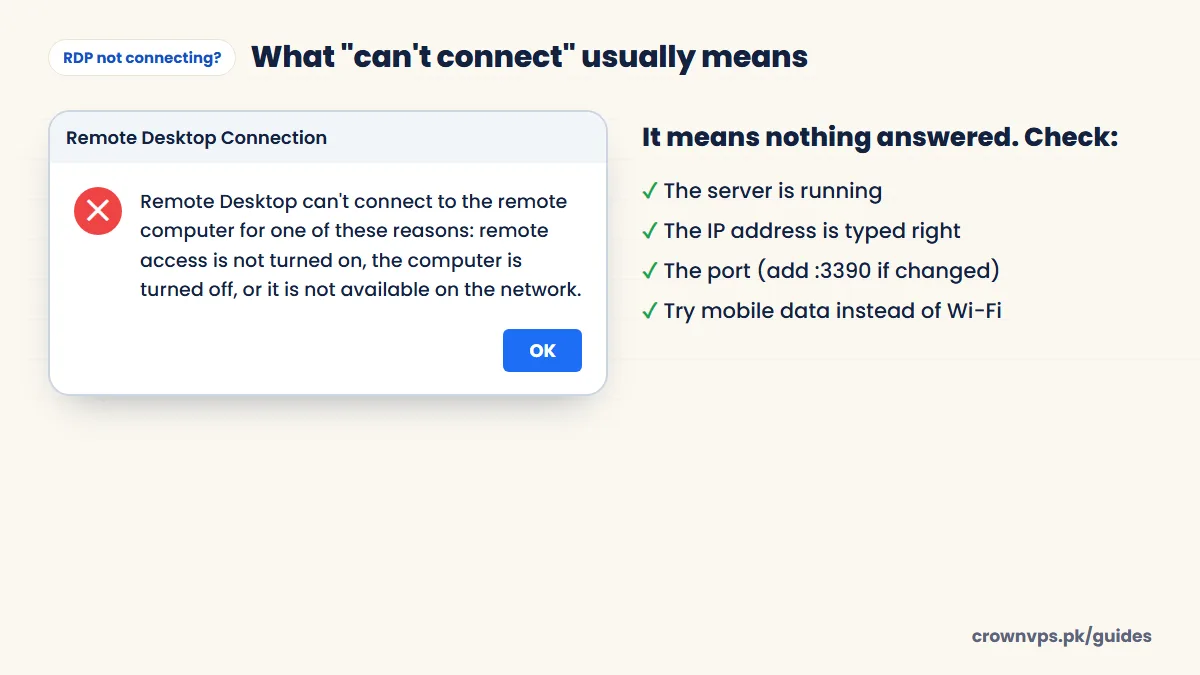
This is the most common message. It means nothing answered on the RDP port. The server may be off or restarting, the IP or port may be wrong, or a firewall on your network may block port 3389. Go through the checklist above in order. On Windows you can test the port directly in PowerShell: Test-NetConnection 203.0.113.10 -Port 3389 — “TcpTestSucceeded : True” means the port is open.
Ping works, but RDP does not
If ping replies but RDP still fails, the server is on but the RDP port is not reachable. Usually the port was changed, Windows Firewall blocks it, or your network blocks it. Try mobile data, check the port, and ask support to check Remote Desktop is turned on from the console.
Common error messages and what they mean
| Message or code | What it usually means | Fix |
|---|---|---|
| “Remote Desktop can’t connect to the remote computer” | Nothing answered on the port | Check the server is running, the IP and port. Then try another network |
| Error 0x204 (Mac, iPhone, Android) | The app could not reach the server — port blocked, wrong IP, or RDP off | Same checks as above; try mobile data |
| Error 0x104 | The secure connection failed, often an old app or wrong address | Update Windows App; check the IP |
| “An internal error has occurred” (0x4) | The security handshake failed | Update your Windows, reconnect; if it keeps happening, restart the server |
| “The credentials that were used to connect did not work” | Wrong username or password, or an old saved password | Type it again carefully. Use .\Administrator. Delete the saved password and retry |
| “The referenced account is currently locked out” | Too many wrong logins | Wait, or ask support to unlock it |
| “An authentication error has occurred” / CredSSP | Your PC or the server is missing security updates | Run Windows Update on your own PC. Ask us to update the server |
| “The remote computer requires Network Level Authentication” | Your Remote Desktop app is too old | Update Windows or use the latest Windows App |
| “The remote session was disconnected because there are no Remote Desktop License Servers” | Extra Remote Desktop licensing was set up but has no licence | Contact support — it is a server setting |
| Certificate warning | The server made its own certificate | This is normal on a new server. Accept it |
| Connects, then drops after a few seconds | Weak network, or the server is out of memory | Try a cable or mobile data. Check the server’s memory |
Error codes like 0x204 and 0x104 are not explained in detail by Microsoft; the meanings above are the usual causes we and other admins see.
Changed the RDP port and now cannot connect?
Add the new port after the IP with a colon, for example 203.0.113.10:50123. If you forgot to open the new port in Windows Firewall before changing it, the server is locked. Support can open the port or undo the change from the console.
Still stuck?
Message us on WhatsApp or open a support ticket. Include the server’s IP address, the exact error message (a screenshot helps), and what you already tried from the list above. Then we can go straight to the fix. Contact support.
Connecting for the first time? Follow the step-by-step connection guide. Once you are in, go through the security checklist.
Quick summary
- Check: server on → IP and port right → mobile data → password → lockout.
- “Can’t connect” and 0x204 mean nothing answered on the port.
- Credential errors mean the username or password is wrong or locked.
- CredSSP and NLA errors mean updates are missing — run Windows Update.
Frequently asked
Why does RDP work on mobile data but not on my Wi-Fi?
Your home or office network is blocking connections on port 3389. Ask the person who runs your network to allow it, or ask us to move RDP to a different port.
What does RDP error 0x204 mean?
It usually means the Windows App on your Mac, iPhone or Android could not reach the server: the port is blocked, the IP is wrong, or the server is off. Try mobile data and check the IP and port.
How do I fix the CredSSP error in RDP?
Run Windows Update on your own computer and restart. If the server is missing updates, ask us and we will update it.
My password is correct but RDP login fails. Why?
Try the username as .\Administrator, delete any saved password in Remote Desktop Connection, and check the account is not locked after too many tries.
I changed the RDP port and now cannot connect. What now?
Add the new port after the IP with a colon. If you forgot to open the new port in Windows Firewall, ask support to open it or to undo the change from the server console.
What is the username for my RDP?
Usually Administrator, as written in your welcome email. If Windows asks for a domain, type .\Administrator to log in to the local account.
Roman Urdu mein sawal jawab
RDP connect kyun nahin ho raha?
Check karein: server on hai, IP aur port sahi hain, password sahi hai. Phir mobile data se try karein. Agar mobile data se chal jaye to aap ka Wi-Fi port 3389 block kar raha hai.
Password sahi hai phir bhi login nahin ho raha?
Username .\Administrator likh kar try karein aur Caps Lock check karein. Bohat dafa ghalat password se account lock ho jata hai — thora intezar karein ya support se rabta karein.
Written in plain English by the CrownVPS support team. Something not clear? Tell us on WhatsApp and we will explain — and improve the guide.