Browser RDP comes free, at no extra cost, with every CrownVPS Windows VPS and RDP. You find it in the client area, on your server’s page. This guide shows how it works, which setting to choose and what to do if something does not work.
What is Browser RDP?
Normally you open a Windows server with a Remote Desktop app, like Remote Desktop Connection on Windows or Windows App on a Mac or phone. Browser RDP does the same job inside a normal web page. You see your server’s desktop in a browser tab and use it with your mouse and keyboard, just like the app.
- Free. It comes with every Windows VPS and RDP — nothing extra to pay.
- Made for slow internet. You choose how much picture quality you want, so it stays smooth on a weak connection.
- Safe. The connection is encrypted, like online banking.
- Useful extras. You can copy and paste between your device and the server (clipboard sharing) and send files (file transfer).
It works on any computer, tablet or phone with a modern browser — even an office or library PC where you cannot install anything.
How Browser RDP works (in simple words)
With the normal app, your computer talks straight to your server. Every small change on the screen travels over your internet, and every click waits for an answer. On a slow or unsteady line this feels like lag.
With Browser RDP, a gateway — a helper server on our side — talks to your server for you. It turns the desktop into a picture stream and sends it to your browser. The preset you pick decides how light that stream is. A lighter stream needs less internet, so it keeps moving even when your connection is weak. That is why Browser RDP often feels smoother than the app on slow or far-away connections.
When should you use Browser RDP?
- Your internet is slow — for example mobile data, a weak Wi-Fi signal or a 1–5 Mbps line.
- Normal RDP is laggy, jumpy or keeps disconnecting.
- You have fast internet, but RDP to one country still feels slow (see the next section).
- You are on a device where you cannot install the Remote Desktop app.
- You want to check your server quickly from a phone or someone else’s computer.
If normal RDP already works well for you, keep using it — both open the same server.
Fast internet, but RDP still lags? Here is why
Many people have 50 or 100 Mbps internet and are surprised that RDP still lags. The reason is that speed and delay are two different things.
- Speed (Mbps) is how much data your line can carry at once — like how wide a road is.
- Delay, or ping (ms), is how long one trip to the server and back takes — like how long and twisty the road is. Remote Desktop cares more about this, because every click waits for the trip.
Your internet company (ISP) decides the route your data takes. Some ISPs send traffic to a certain data centre or country on a long, busy route. Then the ping is high, or some data gets lost on the way and has to be sent again (packet loss). Your speed test still looks great, but RDP feels slow. Another ISP, or the same ISP on another day, can be fine. This is a network problem between your ISP and that location — not a problem with your server.
Fast internet but RDP still lags? Speed is not ping
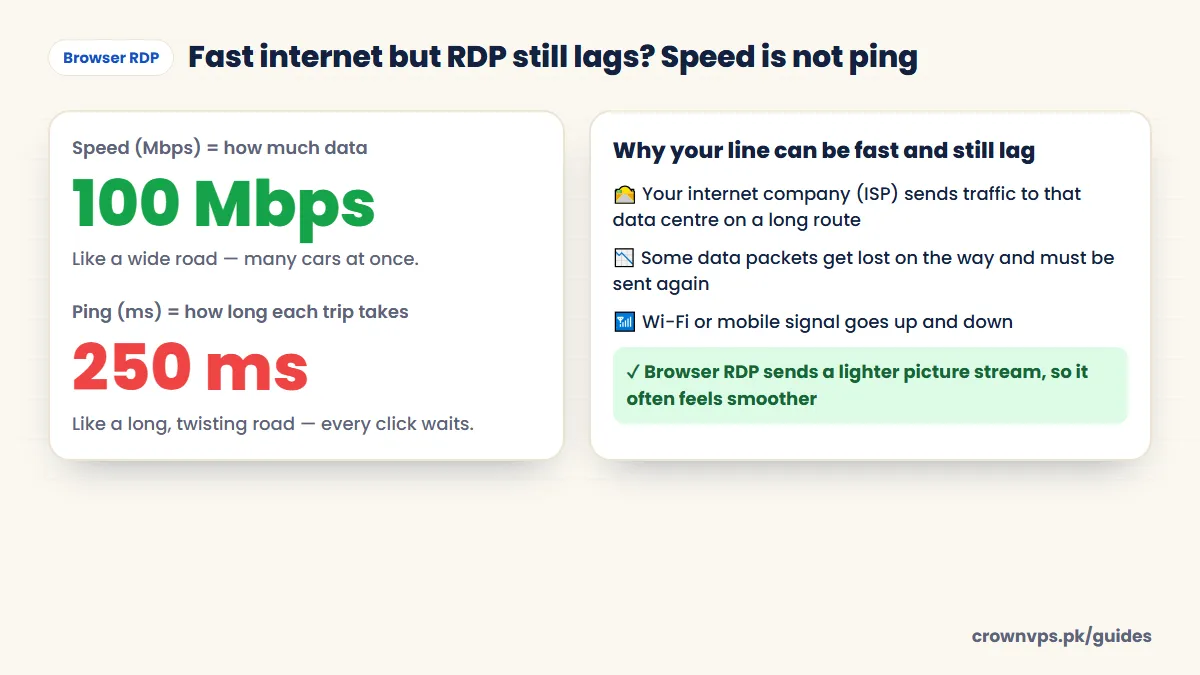
In this case, Browser RDP is worth a try. It often feels smoother on a long or unsteady route. You can also test your ping with our location and ping guide, and try the other fixes in why is my RDP slow.
Which preset should you choose?
A preset tells Browser RDP how to balance speed and picture quality. Pick the one that matches your internet speed. Not sure of your speed? Open any free speed test site, or just start with Balanced.
| Preset | Your internet speed | What you get |
|---|---|---|
| ⚡ Fast | 1–5 Mbps | The smoothest on slow or mobile internet. The picture is a little simpler. |
| ⚖️ Balanced | 5–20 Mbps | Good speed and a clear picture. Best for most home internet. |
| ✨ Quality | 20 Mbps and more | The sharpest picture and colours, for fast fibre. |
Which Browser RDP preset? Match it to your internet speed
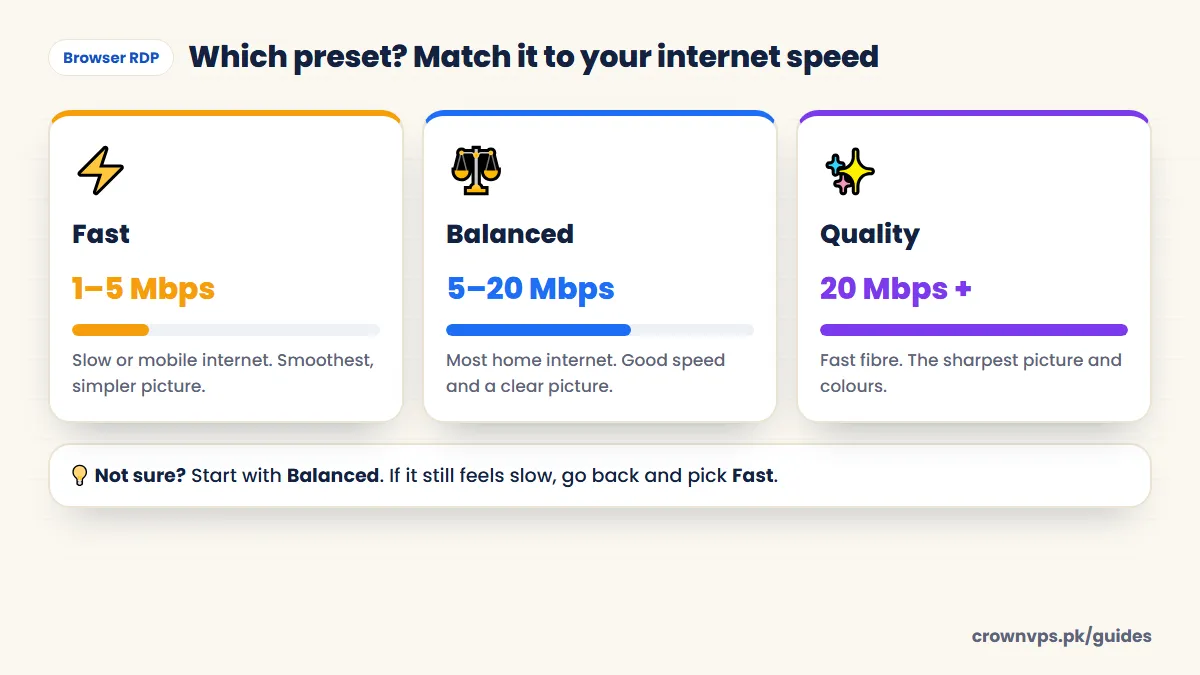
Tip: the preset is about how steady your line feels, not only the number. If you have 50 Mbps but the route is long and laggy, Balanced or even Fast can feel better than Quality.
How to use Browser RDP, step by step
You need your server’s IP address, username and password. They are in the email we sent when your server was ready, and in the client area.
- Open the client area. Go to client.crownvps.net/login.php and log in with your CrownVPS account email and password.
- Click Services in the menu.
- Open your server. Click the active service (the server) you want to use.
- Find the Browser RDP Session box. It is at the top of the page. A green Gateway Online label means it is ready.
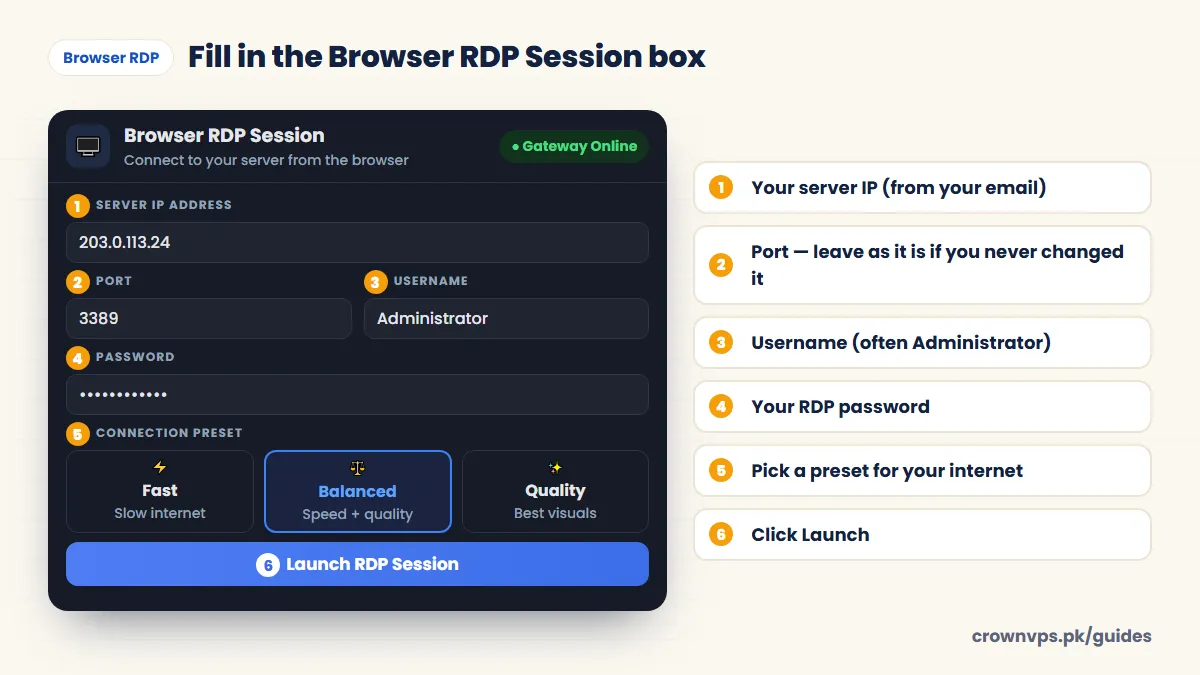
- Type the Server IP address — for example 203.0.113.24.
- Port: if you changed the Remote Desktop port on your server, type your port. If you never changed it, leave it as it is (the normal Remote Desktop port is 3389).
- Type the Username — often Administrator — and your RDP password. Click the eye icon to check you typed it correctly.
- Choose a preset: Fast, Balanced or Quality, to match your internet.
- Click Launch RDP Session. Your server’s desktop opens in the browser. Allow pop-ups if your browser asks.
Find Browser RDP in your client area Fill in the Browser RDP Session box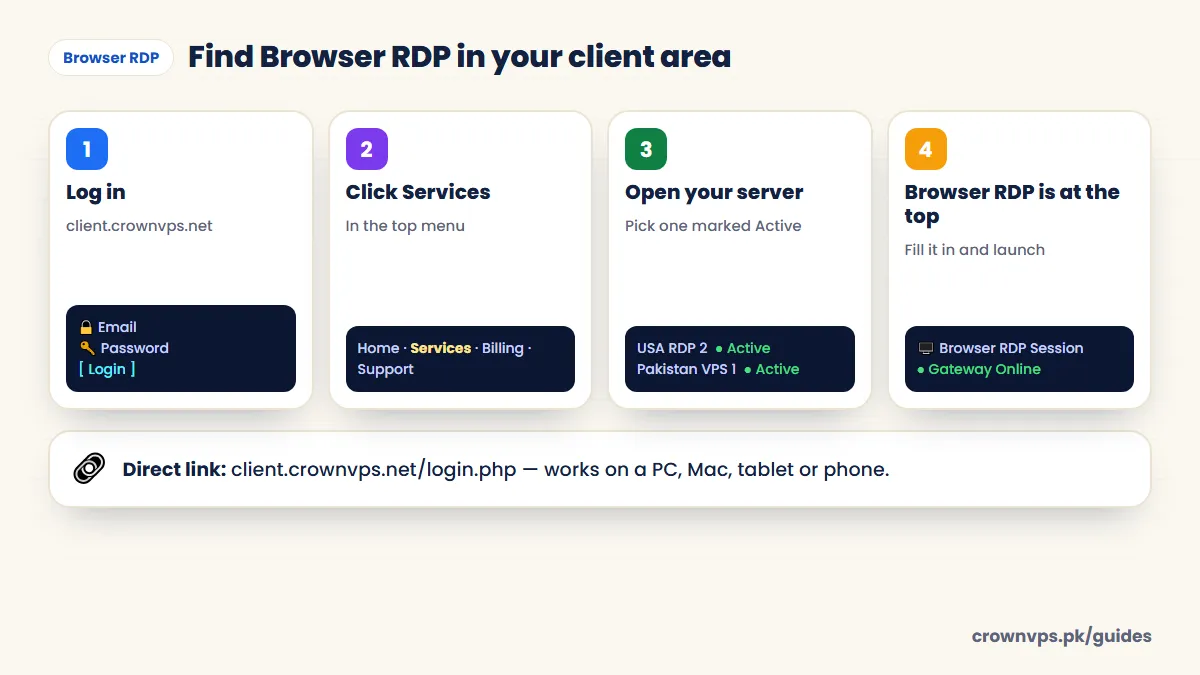
Tips for the smoothest session
- Use a wire or sit near the router. A cable, or a strong Wi-Fi signal, makes a bigger difference than a faster plan.
- Close heavy things on your own device — video streaming, big downloads and game updates share your internet.
- Use full screen for the most comfortable view.
- Change the preset if needed. Too slow? Pick Fast. Picture too soft on a good line? Pick Quality.
- Keep the browser up to date. Chrome, Edge, Firefox and Safari all work best in their newest version.
- Log off or disconnect when you finish, especially on a shared computer. Your programs keep running on the server if you only disconnect.
Browser RDP or the Remote Desktop app?
| Browser RDP | Remote Desktop app | |
|---|---|---|
| Install anything? | No — just a browser | Yes, on Mac and phones (Windows has it built in) |
| Slow or unsteady internet | Better — choose Fast | Can lag |
| Works on any device | Yes | Needs the right app for each device |
| Copy-paste and files | Yes (clipboard sharing, file transfer) | Yes |
| Best for | Slow internet, laggy routes, quick checks, borrowed devices | Fast, steady internet and long daily use |
Want to use the app? See how to connect to RDP on Windows, Mac, Android and iPhone.
Browser RDP not working? Quick fixes
| Problem | Try this |
|---|---|
| “Login failed” or wrong password | Check the username and password (use the eye icon). Passwords are case-sensitive. Copy them again from your email. |
| It cannot connect to the server | Check the IP address. If you changed the RDP port, type that port. Make sure the server is running — start it from the client area if it is off. |
| Nothing opens after Launch | Allow pop-ups for the client area in your browser, then click Launch again. |
| Still slow or jumpy | Choose Fast. Move closer to your Wi-Fi or use a cable. Close downloads and videos on your device. |
| The picture looks soft | If your line is steady, choose Balanced or Quality. |
| The gateway label is not green | Wait a minute and refresh the page. If it stays that way, message our support on WhatsApp. |
More fixes: RDP not connecting.
Is Browser RDP safe?
Yes. The connection between your browser and the gateway is encrypted, and you only reach Browser RDP after logging in to your own client area. Keep your server safe the usual way: a long password you use nowhere else, Windows updates on, and log off on shared computers. See how to secure RDP.
Quick summary
- Browser RDP opens your Windows VPS or RDP in a web browser — no app needed, and free with every Windows VPS and RDP.
- Use it when your internet is slow, or when RDP lags even on fast internet (often a long ISP route or high ping).
- Fast = 1–5 Mbps, Balanced = 5–20 Mbps, Quality = 20 Mbps and more.
- Client area → Services → your server → Browser RDP Session → IP, username, password (port only if you changed it) → preset → Launch RDP Session.
Frequently asked
What is Browser RDP?
It is a way to open your Windows VPS or RDP inside a web browser, without the Remote Desktop app. You use your server’s desktop in a browser tab with your mouse and keyboard.
Does Browser RDP cost extra?
No. Browser RDP is free with every CrownVPS Windows VPS and RDP.
Where do I find Browser RDP?
Log in at client.crownvps.net, click Services and open your active server. The Browser RDP Session box is at the top of the page.
Which preset should I use?
Fast for 1–5 Mbps internet, Balanced for 5–20 Mbps, and Quality for 20 Mbps and more. If you are not sure, start with Balanced and switch to Fast if it feels slow.
Why does my RDP lag on 100 Mbps internet?
Speed is not the same as delay (ping). Your internet company may send traffic to that data centre on a long or busy route, which raises the ping or loses some data. Browser RDP often feels smoother in this case.
Do I need to type the port?
Only if you changed the Remote Desktop port on your server. If you never changed it, leave it as it is — the normal port is 3389.
Does Browser RDP work on a phone?
Yes. It works in the browser on Android phones, iPhones and tablets, as well as Windows PCs and Macs.
Can I copy files and text?
Yes. Browser RDP supports clipboard sharing for copy and paste, and file transfer between your device and the server.
Is Browser RDP safe?
Yes. The connection is encrypted and it is only in your own client area. Use a strong password and log off on shared computers.
Roman Urdu mein sawal jawab
Browser RDP kya hai?
Is se aap apna Windows VPS ya RDP browser (Chrome, Edge, Safari) mein khol sakte hain. Koi app install karne ki zaroorat nahin.
Kya Browser RDP ke alag paise hain?
Nahin. Har Windows VPS aur RDP ke saath Browser RDP bilkul free hai.
Kaunsa preset chunein?
1–5 Mbps internet ho to Fast, 5–20 Mbps ho to Balanced, aur 20 Mbps se zyada ho to Quality.
Internet tez hai phir bhi RDP lag kyun karta hai?
Speed aur ping alag cheezein hain. Kabhi internet company ka rasta us data centre tak lamba hota hai, is liye ping zyada hota hai. Aise mein Browser RDP try karein.
Browser RDP kahan milega?
client.crownvps.net par login karein, Services par click karein, apna server kholein. Browser RDP Session box upar hoga.
Written in plain English by the CrownVPS support team. Something not clear? Tell us on WhatsApp and we will explain — and improve the guide.